

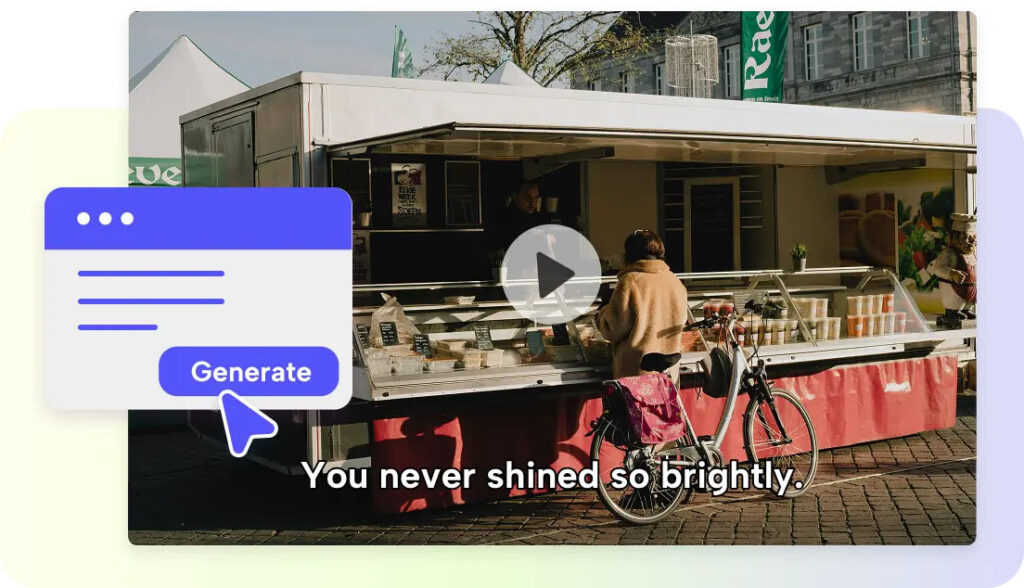
Creative projects evolve as scenes, characters, and media assets come to life. Planning notes by assets prevents context switching and loss of valuable ideas. Pippit combines roles, scenes, images, videos, text, and audio on a single Canvas. Text notes complement planning and do not supplant scripts or completed content. They record decisions, reminders, revisions, and production guidance close to relevant assets.
What Makes In-Workspace Text Notes Valuable?
After examining a generated scene or character, ideas may come to mind. Those changes can be hidden from affected assets in a separate document. In-workspace notes ensure reminders, messaging ideas, scene objectives, and revision thoughts are at hand. This way, decisions are associated directly with roles, scenes, images, videos and audio. It also helps navigate an AI movie project through numerous Canvas resources. Notes can be used to explain why an asset exists, what needs to be improved, or what happens next. They help set the scene without overshadowing the media.

Use Text Notes to Capture Ideas Before Generating Media
A text note can capture intentions for the scene before an image or video is generated. Use character descriptions, product messages, visual ideas, emotional beats, or key actions as a starting point. Next, convert vague thoughts into concrete cues for both the information and the expected results. For instance, a weary detective walks into a police station in the pouring rain. Include camera distance, lighting, expression, atmosphere, and action. This provides a practical link between the script planning and production. Prompt-driven creation is supported in Pippit’s story studio workflow, across roles, scenes and media types. Before generating, a note can maintain the reasoning behind each prompt.
Structure Text Notes Around Content Rather Than Convenience
Useful notes are best when each is put to a specific production purpose. Consider these categories:
-
Idea: Record ideas that could be used for scenes, images, messages, or alternate directions.
-
Direction: Give instructions for visual decisions, performance, pacing, composition, or atmosphere.
-
Copy: Maintain messaging needs that impact text components or marketing products.
-
Revision: Find out what the problem is and what needs to be changed.
-
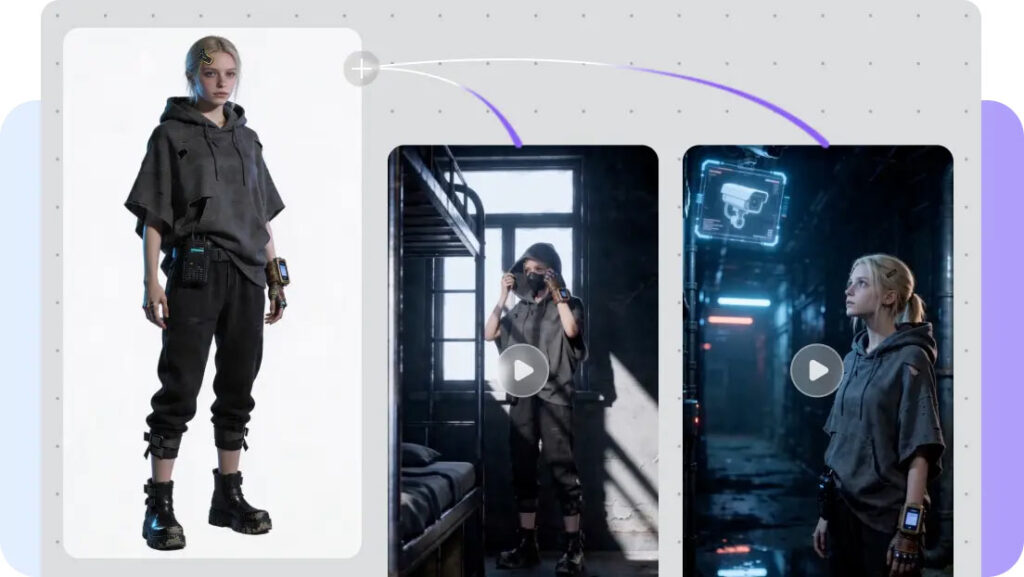
Continuity: Keep the characters the same, locations the same, props the same, timing the same, and visual details the same.
-
Next Step: Identify what action to take to keep production running.
Avoid long wording as the Canvas will become more difficult to scan as it gets larger. Every note should convey an actionable idea, rather than the entire script.
Steps to Create Text Notes for Content Directly in Story Studio Workspace
Step 1: Set up your script and workspace
-
Create your Pippit account using Google, TikTok, or Facebook account information.
-
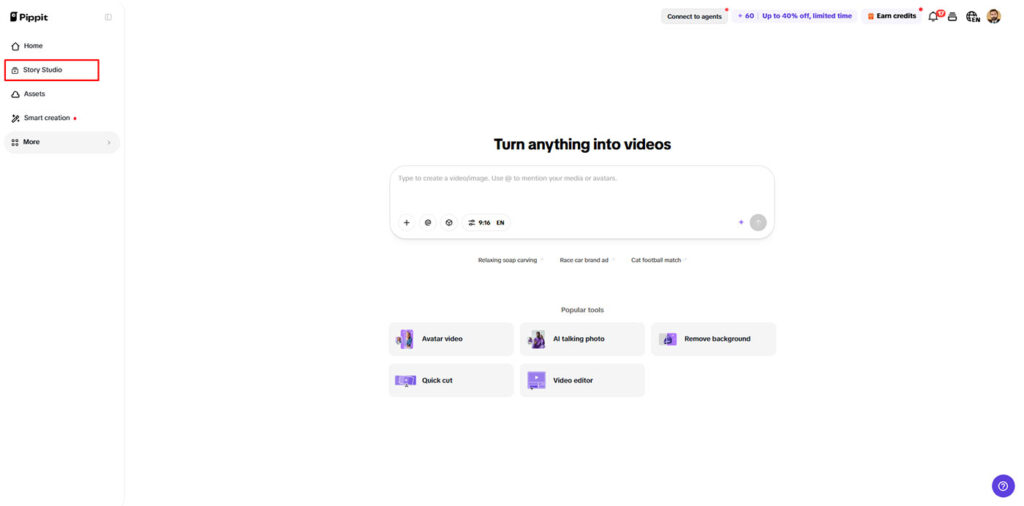
On the home page, select the “Story Studio” tab from the left vertical menu bar to enter the workspace.
-
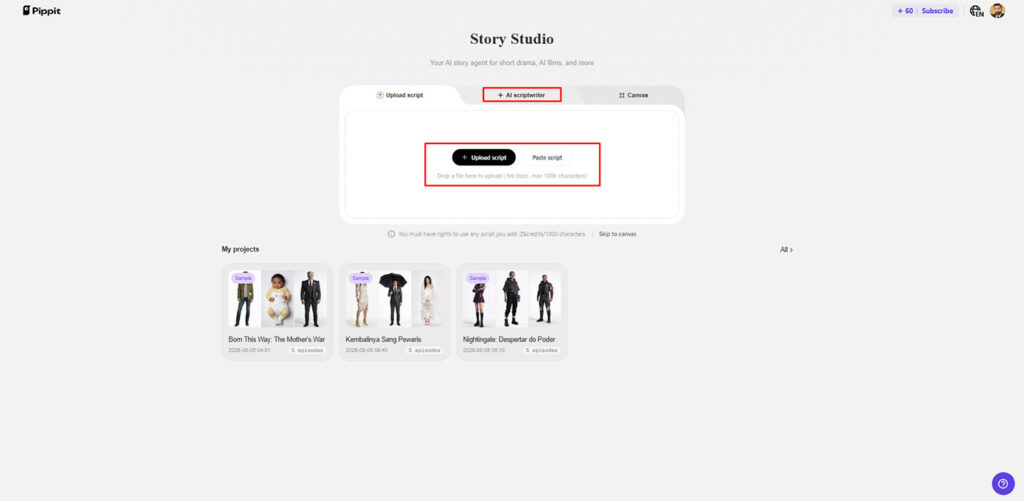
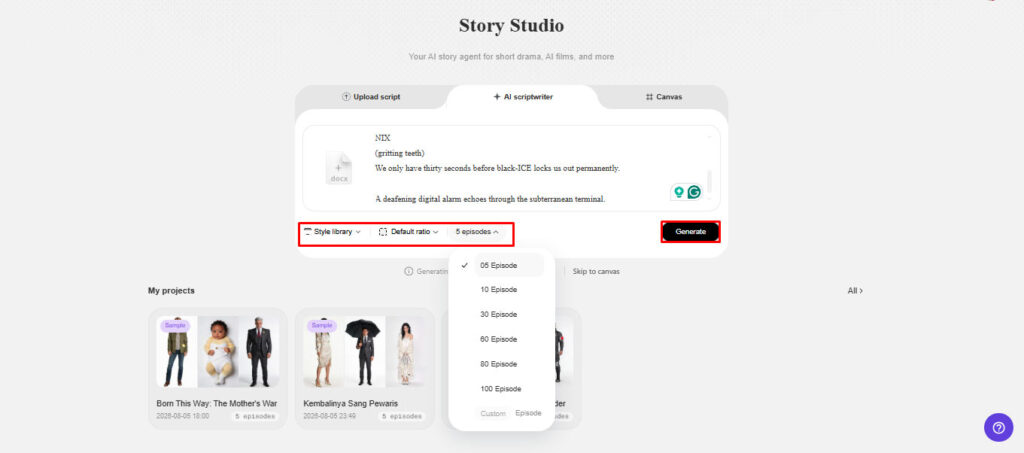
Select “Upload script” to add a script file, or use “Paste script” to write or paste your script directly into the workspace.
-
If you need a new script, choose “AI scriptwriter” from the top menu and let AI create content around your selected topic.
-
Choose a suitable visual style through “Style library” at the bottom left of the dialogue box.
-
Select your preferred format through “Default ratio” and choose the number of episodes from the “Episodes” tab.
-
Click “Generate” to create the story based on your settings.
Step 2: Write and organize text notes on the Canvas
-
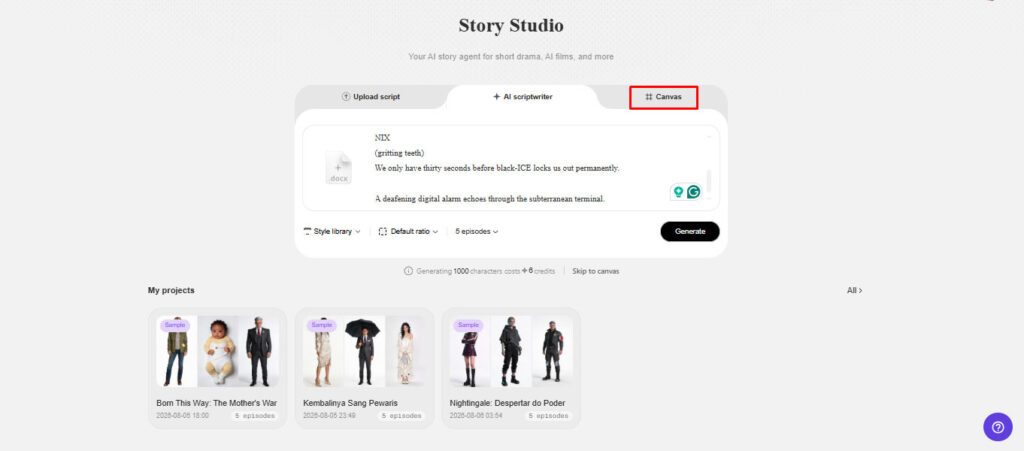
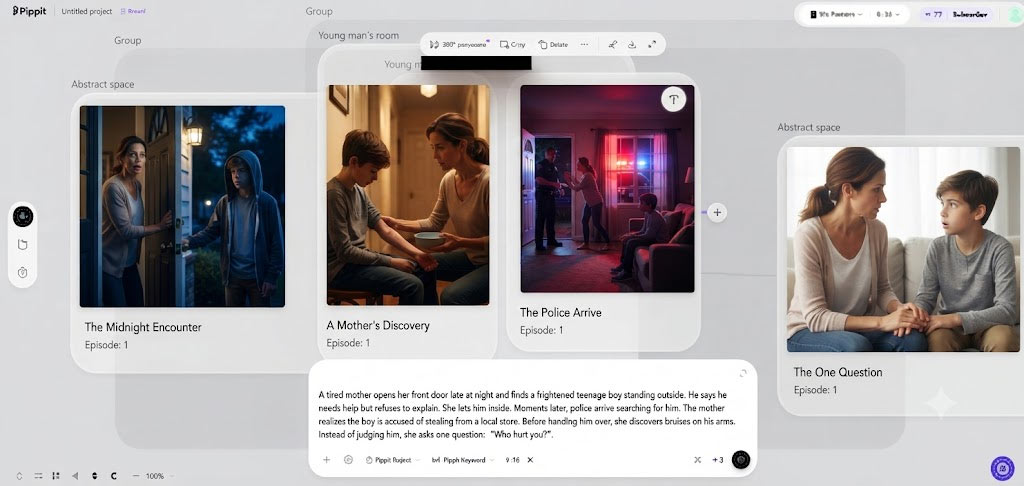
Go to the “Canvas” tab to work with images, scene videos, audio, and characters with specific roles.
-
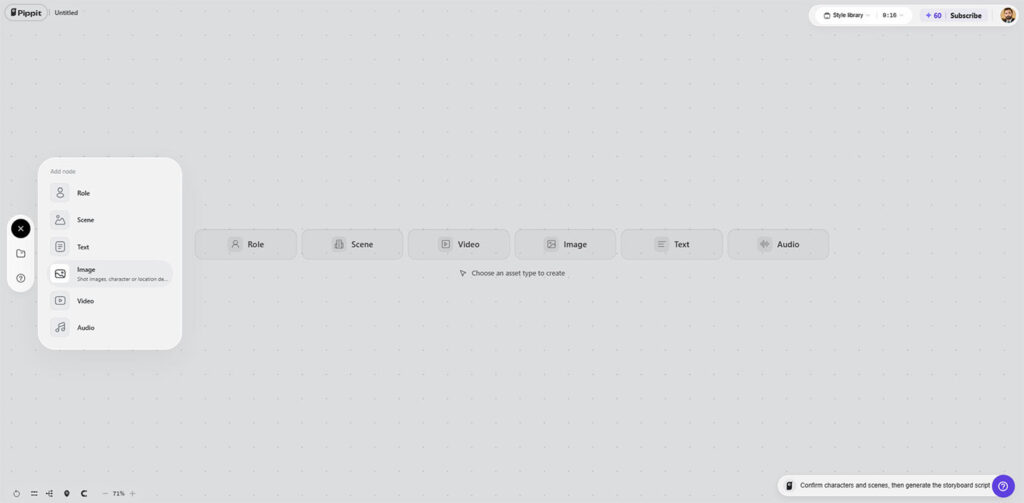
Add text notes or prompts for individual scenes to describe what each part should contain.
-
Include practical details such as character look, setting, lighting, camera angle, visual style, voice tone, story mood, and product context.
-
Use these notes to guide the content while keeping your story elements organized in one workspace.
-
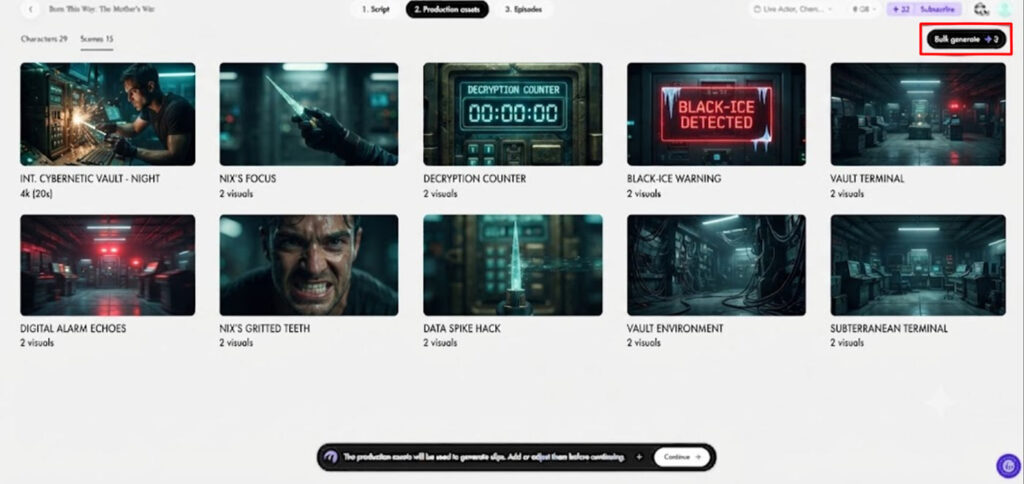
After assigning roles and preparing the characters and scenes, select “Batch generate” to generate the episodes.
Step 3: Check your notes against the final episodes
-
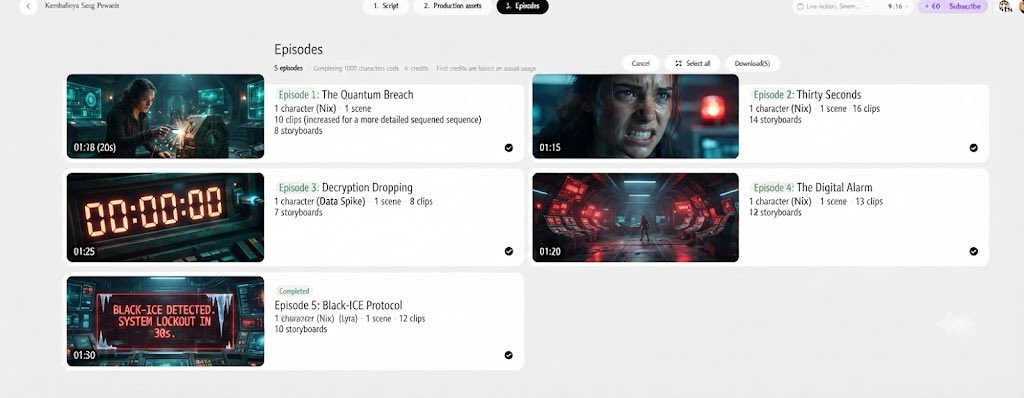
Review the generated episodes and make changes to characters, roles, scenes, audio, or other story elements.
-
Compare the results with your text notes to refine scenes and keep the content aligned with your original direction.
-
Once you are satisfied, click “Select all“, followed by “Download“, to bulk download the generated episodes to your device.
Turn Text Notes into Better Prompts
Good notes can expose important prompt information prior to generation. Review character appearance, character location, lighting, camera angle, action, atmosphere, and visual style. Product context, audience needs, claims, and message priorities should also be documented in marketing projects. Do not use general terms such as ‘make it exciting’ – use specific terms instead. List fast walking, low angle framing, bright storefront lighting and focused expression. Make prompts specific and not overly complex to guide the ad maker effectively. Notes can serve as checklists prior to assets being given the final prompts. This ensures that no information is overlooked and revisions are simpler to explain.

Keep Script Content, Notes, and Generated Assets Distinct
Script content defines the events, dialogue, narration, and progression of the story. Production decisions are guided by planning notes which offer working direction for the content. Generated assets are the ones that turn those decisions into images, videos, audio, text, or other media. A planning note should not be called a dialogue or approved copy. Similarly, final text should not be a disguised production instruction. Separating these layers helps to minimize confusion when revising or reviewing. Pippit’s all-in-one Canvas maintains this separation by keeping asset types in one project space. Also, the different separation makes it easy for teams to see what requires editing and what has been finalized.
Use Text Notes During Review and Iteration
After media exposure of problems, review notes are valuable. Write down inaccurate information, inconsistent character portrayal, poor framing, unclear messaging, or pacing issues. Turn each observation into a tangible revision task that has a clear revision outcome. Change the word “scene feels weak” to “tighten product framing.” Discarded ideas can still be valuable. Strong ideas can support later versions. Pippit’s Canvas workflow facilitates the reviewing, editing, regrouping, and ongoing asset creation. Observations next to assets make iteration more conscious and prevent the same checking.
Why Text Notes Improve Content Workflows
The Canvas is more than a collection of generated media, though, as notes are written in text. They offer lightweight context for decisions, changes, priorities, and unfinished work. A useful note can be used to explain the purpose of an asset without creating an additional planning document. This is important if there are multiple episodes and numerous asset types within a project. Notes also provide continuity if production stops and restarts. Message priorities can be maintained alongside the visuals, which are impacted by marketing projects. Narrative projects have the ability to store character intentions along with scenes and role references. When used judiciously, notes enhance organization without burdening you with administrative tasks.
Conclusion
Creative workspaces can be made clearer, faster, and easier to manage with the use of text notes. Their usefulness lies in having useful planning information close to relevant assets. Short notes ensure intentions are clear, continuity is protected, and reviews become actionable. They should be used to supplement scripts and produced media instead of replacing either one. As projects evolve and expand in size with more assets, strong notes make decisions easier. Make each note concise, specific, and easy to understand at a glance.
